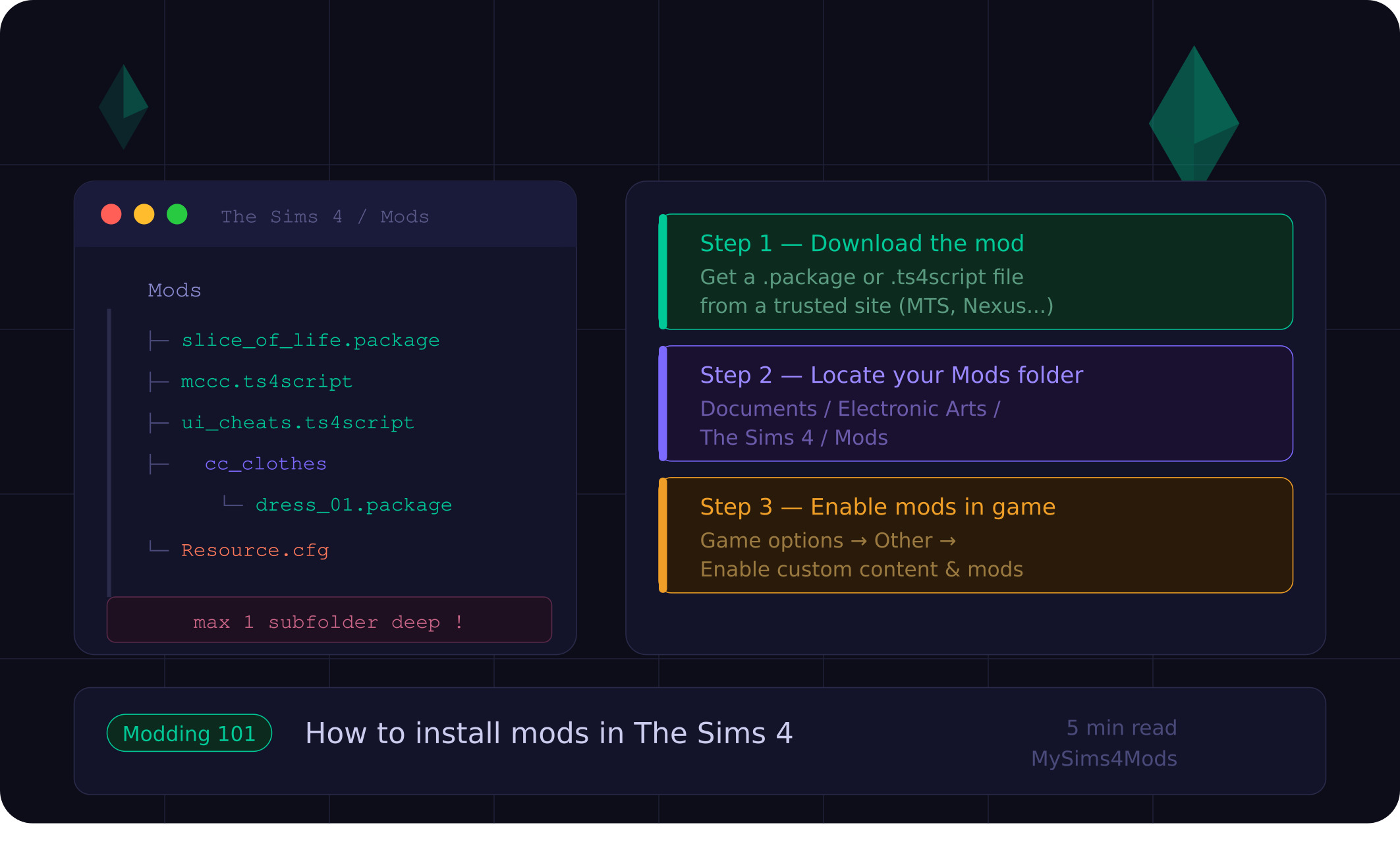
Mods and Custom Content (CC) are one of the best ways to get more out of The Sims 4. From new hairstyles and furniture to entirely new gameplay mechanics — the modding community has built thousands of incredible additions that EA never shipped. Here's how to install them the right way.
Step 1 — Enable Mods in the Game Settings
By default, The Sims 4 has mods disabled. You'll need to turn them on manually before anything works.
Launch The Sims 4 from your desktop or Origin/EA App.
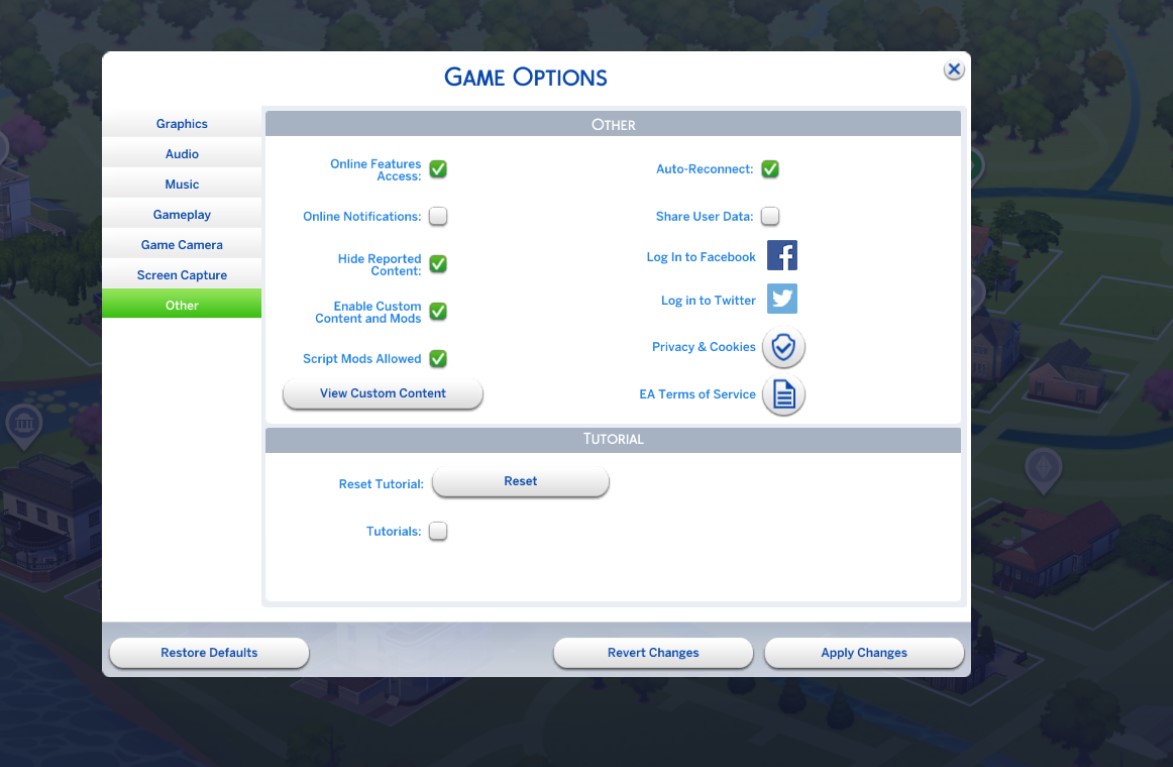
From the main menu, click on Game Options (the three-bar icon).
Navigate to the Other tab in the left sidebar.
Check both boxes: "Enable Custom Content and Mods" and "Script Mods Allowed".
Click Apply Changes, then restart the game for the setting to take effect.
Step 2 — Find Your Mods Folder
The Sims 4 loads mods from a specific folder on your computer. The location varies by operating system.
On Windows
Documents\Electronic Arts\The Sims 4\Mods\
On Mac
~/Documents/Electronic Arts/The Sims 4/Mods/
If the Mods folder doesn't exist yet, just create it manually inside the The Sims 4 directory. The game will recognize it automatically on next launch.
Step 3 — Download and Install a Mod
Once you've found a mod you like (on ModTheSims, Patreon, or a creator's website), here's how to get it running:
Download the mod file — it will usually be a
.zipor.rararchive, or directly a.packageor.ts4scriptfile.If it's a compressed archive, extract it using software like 7-Zip (Windows) or the built-in extractor (Mac). Do not leave files inside a
.zip— the game cannot read compressed archives.Move the extracted
.packageand/or.ts4scriptfiles directly into yourModsfolder.Launch The Sims 4 — your mod should now be active.
File Types Explained
.PACKAGE
Standard Mod File
Used for most CC and simple mods. Drag and drop into your Mods folder — no extra steps needed.
.TS4SCRIPT
Script Mod File
Used for complex gameplay mods. Requires "Script Mods Allowed" to be enabled. Often paired with a .package file from the same mod.
Step 4 — Verify the Mod Is Working
After launching the game, you can check which mods loaded successfully:
From the main menu, go to Game Options → Other.
Click on "View Custom Content" — a list of all detected mods will appear.
If a mod is missing from the list, double-check the file is a
.packageor.ts4script, is not inside a compressed archive, and is not more than one subfolder deep.
Keeping Your Mods Healthy
Mods can break after major game updates. Here are some habits to stay on top of it:
After every Sims 4 update, check mod creator pages for updated versions.
Use Sims 4 Mod Manager or Curseforge App to track and update mods automatically.
When troubleshooting issues, move all mods out of the folder and add them back in batches to isolate the culprit.
Keep a backup of your
Modsfolder before major game patches.Check the
lastException.txtfile in your Sims 4 folder — it logs mod-related errors.